UI Regression in Microsoft RDP: Scaling Conflicts Compromise Security Prompts in Windows 11
.rdp files.
While the update successfully addresses underlying security vulnerabilities, a newly introduced graphical defect is preventing users from interacting with essential security dialogues. This creates a paradoxical situation where the very mechanisms meant to protect the user are rendered unusable due to rendering errors.
The recent overhaul of the Remote Desktop Connection application (MSTSC.exe) was not a cosmetic choice but a necessary defense-in-depth response. Industry bodies, including the UK’s National Cyber Security Center (NCSC), had previously identified a critical spoofing vulnerability. This flaw allowed threat actors to embed malicious instructions within RDP files, effectively using phishing campaigns to gain unauthorized access to local system resources.
To mitigate this, the April update enforces a strict security posture by disabling local resource sharing by default. This includes blocking automatic access to:
- System clipboards
- Local drive redirection
- Connected hardware devices
The Technical Root: DPI Scaling and UI Corruption
The security enhancements are theoretically robust; however, the implementation has introduced a frustrating graphical anomaly. According to official Microsoft documentation, the new security prompts suffer from overlapping text elements and partially obscured action buttons.
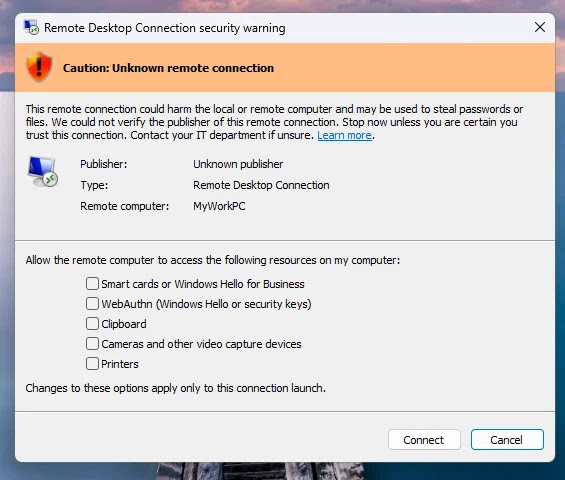
This defect fundamentally breaks the human-machine interaction flow. Users find themselves unable to verify the publisher’s identity or click the “Allow” buttons required to establish a session. The technical trigger for this regression is linked to High DPI scaling conflicts in multi-monitor environments. Specifically, when a workstation utilizes heterogeneous scaling factors—such as a primary display set at 100% and a secondary high-resolution monitor at 125% or higher—the RDP client fails to recalculate the window’s coordinate system correctly, leading to the described text overlap.
Mitigation and Temporary Workarounds
Until Microsoft releases an out-of-band patch or an updated servicing stack to resolve these scaling-related rendering errors, system administrators may need to intervene to maintain operational continuity. For organizations where RDP is a critical component of their remote workflow, reverting to the legacy dialog behavior via the Windows Registry is a viable, albeit temporary, solution.
Caution: Reverting to the legacy UI disables the enhanced phishing visibility introduced in the April update. Use this workaround only as a stopgap while monitoring for incoming patches.
To implement this fix, administrators should follow these technical steps:
- Open the Registry Editor (regedit.exe) with administrative privileges.
- Navigate to the following path:
HKEY_LOCAL_MACHINE\Software\Policies\Microsoft\Windows NT\Terminal Services\Client - If the
Clientkey does not exist, create it. - Create a new REG_DWORD (32-bit) Value.
- Name the value:
RedirectionWarningDialogVersion - Set the Value Data to
1 - Restart the Remote Desktop Connection application to apply the changes.
Applying this registry modification forces the application to utilize the previous version of the warning interface, effectively bypassing the modern, bugged UI and restoring the ability to interact with connection prompts.